

A staff request arrives by email, gets forwarded twice and disappears behind a newer message. Nobody deliberately ignored it. The business simply had no shared place to show who owned the next action.
For a small Malaysian business already using Microsoft 365, a practical first step is a staff-only Microsoft Form feeding a Microsoft List through Power Automate. Start with ordinary equipment or office-service requests. Keep emergencies, confidential HR matters and security incidents on their established reporting routes.
Check access and licensing first
You need an organisational Microsoft account, access to Forms and SharePoint Online, and permission to create cloud flows in your Power Automate environment. The flow’s connections must be able to access the selected form and create items in the target list. Creating the list and managing its access require appropriate SharePoint permissions; global administrator access should not be the default implementation requirement.
The Forms and SharePoint connectors are classified as Standard for Power Automate. Microsoft’s licensing FAQ explains that Microsoft 365 plans provide standard-connector access within their applicable rights and limits. Have your administrator confirm the assigned SKU, enabled services and environment policies. This design uses no premium connector or AI feature and does not require a Copilot add-on; it is not a promise that every Microsoft subscription includes every prerequisite.
1. Design the queue before the form
Create a list called Staff Requests on a team-owned SharePoint site. Keep its initial columns straightforward: Title, RequestType, Description, RequesterEmail, NeededBy, Status, TriageOwner and FormsResponseId. Use text for the descriptive fields, a date for NeededBy and a Choice column for Status with New, In progress, Waiting and Closed.
For the pilot, TriageOwner can be a text field containing the responsible team or person. A Person column is possible later, but it introduces identity mapping that a simple text field avoids. Agree who checks New requests each working day and who handles absence cover.
Hypothetical example: a 30-person wholesaler uses the queue for replacement peripherals and warehouse workstation requests. Its office administrator triages submissions, while the IT coordinator updates progress. The queue records work; it does not approve expenditure or guarantee a response time.
2. Create a staff-only intake form
In Forms, add questions for a short request title, request type, description and needed-by date. Make the essential questions required. Add a short instruction telling staff not to submit passwords, identity documents or sensitive customer information.
Under Collect responses, choose Only people in my organization can respond and enable name recording where available. Microsoft’s audience guidance distinguishes this authenticated setting from Anyone can respond. Leave the one-response-per-person restriction off: staff may legitimately need to submit another request next week. Test with an ordinary staff account before distributing the link.
3. Connect the form to the list
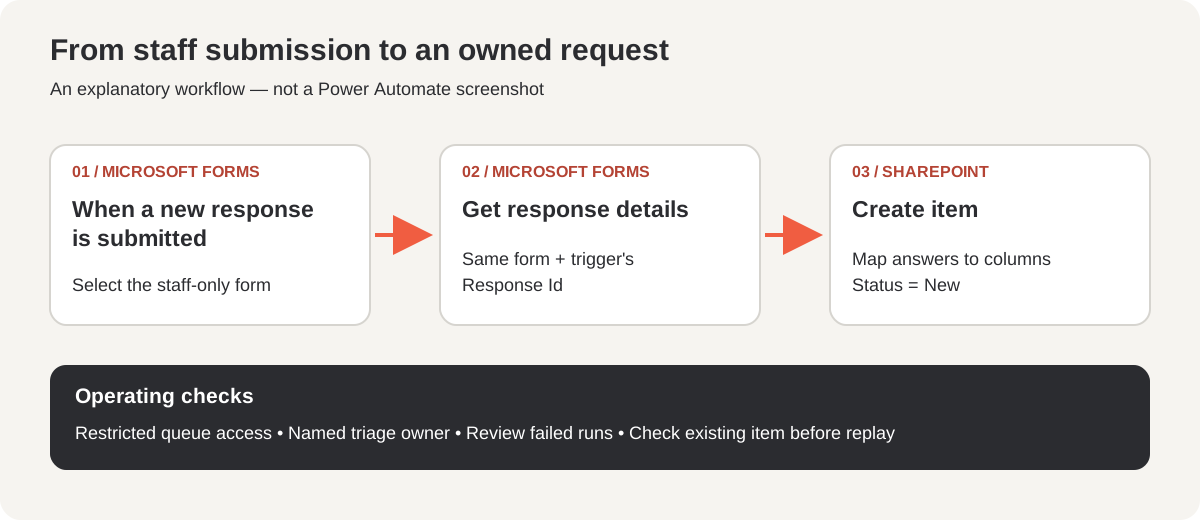
In Power Automate, create an automated cloud flow. Select the Microsoft Forms trigger When a new response is submitted, then select the form. Add Get response details, choose the same form and supply the trigger’s Response Id. Microsoft’s workflow instructions document this trigger-and-details pattern. If a group-owned form is missing from the selector, the connector documentation explains how to enter its Form Id manually.
Add SharePoint’s Create item action. Select the site address and Staff Requests list. Map the answer fields into the corresponding columns, the responder’s email into RequesterEmail and the trigger’s response identifier into FormsResponseId. Set Status explicitly to New and TriageOwner to your agreed intake team. Save the flow.
The response identifier is a troubleshooting reference, not proof that duplicate handling exists. Before replaying a failed run, check whether that response already created an item. A notification failure after successful creation should not lead someone to create the same request again.
4. Test the journey and the access boundary
Submit two fictional requests and use the flow’s run history to inspect the trigger, response details and Create item result. Confirm that the list holds the correct title, email, date and response identifier. Check the stored date against the organisation’s regional settings rather than assuming the display matches the submitter’s device.
Then test permissions separately. The form’s audience does not define the list’s audience. Verify that only the intended operators can read and edit the queue; filtering a view to someone’s name is not a substitute for access control. Keep real personal information out of pilot tests and remember that flow run history can expose submitted answers to flow owners.
5. Give the automation an operating owner
Add a suitable co-owner through the flow’s sharing controls and document whose connections it uses. Microsoft notes that co-ownership allows flow management but does not let an owner change another owner’s connection credentials. Plan a handover and connection check before the original builder leaves.
Run a small pilot before wider rollout. Review failed runs, unassigned New items and requests sitting in Waiting. Once the intake works reliably, you can add a consolidated follow-up digest. To discuss an appropriate Microsoft 365 workflow for your business, contact AXO Technologies.
Sources and dates
Published 27 October 2026. Microsoft documentation checked on 27 October 2026. This is the access date; these are maintained documentation pages, not announcements published today. Labels and available settings can vary by tenant and designer.
- Microsoft Forms connector reference — actions, organisational accounts and group-form limitation.
- SharePoint connector reference — classification and list actions.
- Power Automate licensing FAQ — entitlement and limits.
- Forms: send a form and collect responses — audience settings.
- Forms: create an automated workflow — trigger and response details.
- Share a cloud flow — ownership and connection considerations.